Upgrade a plugin to .NET Core
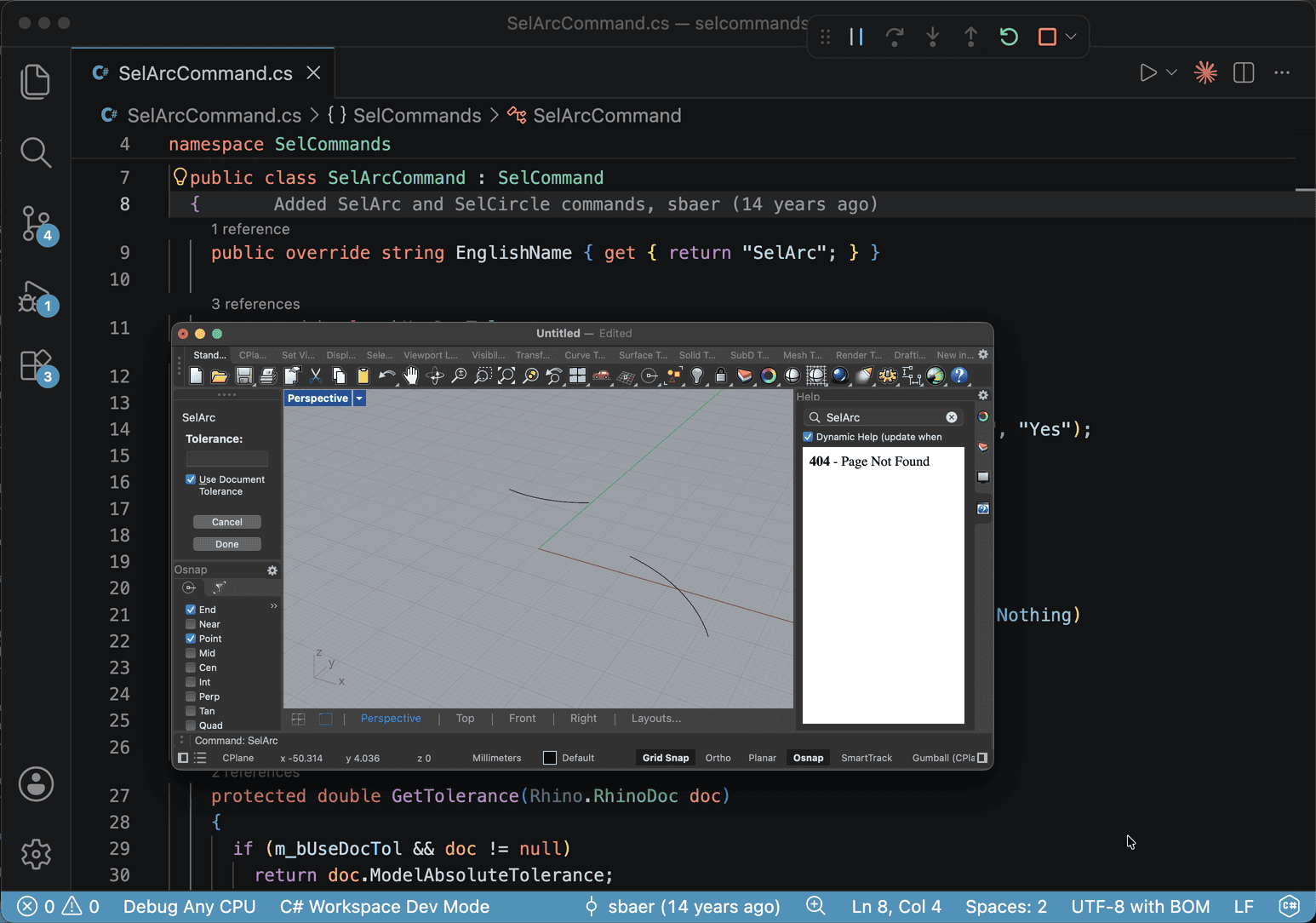
If you have a Rhino plugin still targeting net45 or net48, you’ll want to move it to net8.0 (Rhino 8) which will also work for (Rhino 9 WIP/BETA). This page showcases how you can use the RhinoMCP to make this upgrade seamless.
An Example
As an example we’ll upgrade this simple net45 plugin written by Steve Baer. Checkout the code, and open your AI agent at the path of the locally cloned repo.
The prompt
Upgrade this legacy RhinoCommon plugin to a modern Rhino 8 plugin per the McNeel CSRhino template: https://github.com/mcneel/RhinoVisualStudioExtensions/tree/main/Rhino.Templates/content/CSRhino
- SDK-style csproj, net8.0;net48, EnableDynamicLoading, TargetExt=.rhp, RhinoCommon via NuGet (ExcludeAssets=“runtime”)
- Move Title/Company/Description/Version into the csproj; keep PlugInDescription attrs and the original Guid in AssemblyInfo.cs
- Ensure the necessary debug launch profiles exist for vscode and Visual Studio from the template
- Don’t touch command sources unless an API changed
dotnet buildto verify both target frameworks
The AI Agent
With this prompt the AI agent will read through and update all of the necessary files in the repo, mostly .csproj and .cs files. It will also test using dotnet build to ensure the code works. When the code builds the agent will load the .rhp into Rhino and can run commands to ensure it worked. If Rhino crashes, the AI Agent should get the crash info and can figure out why it crashed and resolve it.
What to review
When your AI Assistant is done it is very important to review all of the changes made and make an effort to understand them. Some important items to review.
- The new
.csproj. - Directory.Build.Props.
- Updated Nuget references
- Any updated commands